

The safest way to protect your computer during a move is to get organised before you reach for the bubble wrap. It’s understandable to worry about an expensive monitor, missing cables or a computer that won’t reconnect properly at the other end. A clear plan for packing computer equipment for a move helps protect your devices and makes setting them up again easier.
This guide takes you through the process, from backing up files and photographing cable connections to wrapping and boxing computers, monitors and accessories separately. You’ll also learn how to label cables, protect delicate parts and organise boxes for unpacking. Original packaging can be useful if it still holds the device securely. Otherwise, choose a suitable moving box and enough cushioning to limit movement in transit.
Phoenix Supplies UK stocks moving boxes, bubble wrap and Furniture Removal Blankets to support your packing plan. The aim is simple: keep your data backed up, your equipment protected and the right cables close at hand.
Key Takeaways
- Back up important files and record how your cables connect before disconnecting your devices.
- When packing computer equipment for a move, work through one device at a time and keep its accessories grouped and labelled.
- Choose between original packaging and a suitable moving box, using bubble wrap to cushion equipment inside.
- Pack the computer tower and monitor separately, and label their boxes clearly.
- At your new home, unpack onto a stable surface and check equipment for visible damage before reconnecting it.
Packing computer equipment for a move: what needs protecting first?
A computer may hold important work files, family photographs and the information you need for everyday tasks. Before choosing boxes or cushioning, plan how to protect both your files and your equipment. Packing computer equipment for a move is simpler when you treat each device as a separate item and keep its accessories together and clearly identified.
Your set-up may include a desktop tower or laptop, one or more monitors, a keyboard, mouse, printer and a collection of power and connection cables. These items have different shapes and connection points. A screen needs protection from knocks and pressure, while a printer or tower may have parts that can catch on other items. Packing devices separately lets you cushion each one properly and reduces the chance of accessories rubbing against it.
This follows the principles of packaging: protect the item, then use an outer container to help shield it during transport. Moving boxes and bubble wrap can support that plan. Cushion each device inside its own box instead of placing it loose among unrelated belongings.
Which computer equipment should be packed separately?
Lay out the main computer, each screen and each peripheral before choosing how to protect them. Group a keyboard and mouse with the computer they belong to, keeping that set separate from another workstation’s accessories. Give unusually shaped or delicate items, such as a printer, their own cushioning. Don’t put loose cables in a screen box or beside equipment where they could shift against it.
Why back up and record your set-up before moving
Back up important work and personal files before disconnecting your devices. Then photograph the connections at the back of the computer and any other equipment with several cables. Keep the photos accessible, and label cables or accessory groups so you can match them to the right device later. A clear photo and simple labels make reconnecting equipment less of a guessing game.
Once you know what belongs together, prepare and pack each device in turn. Protect your information first, separate the equipment and give every accessory an obvious place. This helps prevent mix-ups when you’re ready to set up again.
Prepare computers, monitors and cables before packing
A few minutes of preparation can make packing computer equipment for a move more organised and reduce confusion at your new address. Work through one computer or workstation at a time, keeping its accessories together from the start.
Back up files and shut devices down safely
Save any open work and back up important files before disconnecting anything. Preparing your data protects your files; cushioning and careful packing protect the physical equipment. Both are part of getting ready to move.
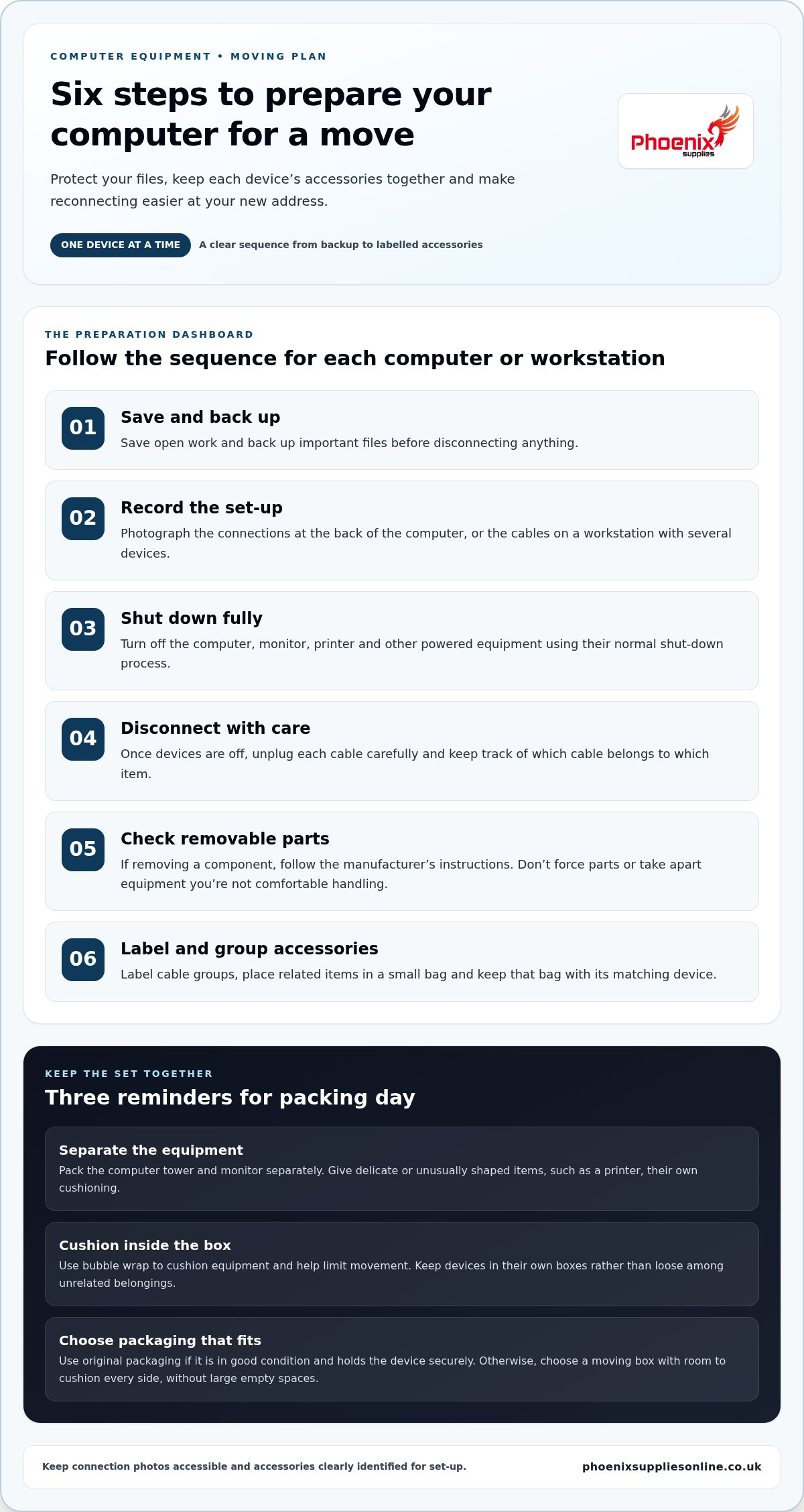
Once your backup is complete, follow this sequence for each device:
- Save and back up. Check that current work is saved and important files have been copied to your chosen backup.
- Record the set-up. Photograph the connections at the back of a desktop or the cables on a multi-device workstation before unplugging them.
- Shut down fully. Turn off the computer, monitor, printer and other powered equipment using their normal shut-down process.
- Disconnect power and accessories. Once the devices are off, unplug each cable carefully. Keep track of which cable belongs to which item.
- Check removable parts. If you plan to remove a component, follow the device manufacturer’s instructions. Don’t force parts or take apart equipment you’re not comfortable handling.
- Pack the accessories. Label each cable group and put it with the matching device. Keep the bag closed and ready for its designated box.
Your connection photos will give you a reference when it’s time to reconnect the equipment. Labels provide another clear cue, especially when several computers or screens look alike.
Label cables and keep accessories together
Use short, clear labels such as “monitor power” or “office PC keyboard”. If the two ends of a cable could be confused, label both. Put related items, such as a computer’s power lead, keyboard and mouse, in a small bag marked for that device. Keep essential cables accessible, but don’t leave them loose in a box with equipment where they could shift against a screen or case.
For a home office, mark each group with the room or workstation it belongs to. For a small business move, simple workstation labels help keep equipment sets together and prevent cables from being mixed between desks.
With devices powered down, cables organised and accessories identified, you’re ready to choose a box and cushioning. Browse moving boxes and bubble wrap to find Packaging Materials for your plan.
Choose protection for computer equipment: original boxes, cartons and cushioning
The right packing set-up depends on the device, its shape and the packaging available. When packing computer equipment for a move, think in layers: cushioning helps protect the item and limit movement, while a suitable box provides an outer layer of protection. Larger items may also need protection during handling before they go into their box.
When to use original packaging or a moving box
Original packaging is useful if it’s in good condition and holds the device securely. Shaped inserts may help keep the item in place. Check that the box and inserts still fit properly rather than assuming they’ll protect the equipment just because they came with it.
If the original packaging isn’t suitable, choose a moving box that leaves room to cushion the device on every side without leaving large empty spaces. A box that’s too tight may not leave enough room for protective material; one that’s too roomy can let its contents shift. For more general box-selection guidance, see the guide to buying moving boxes online in the UK. A packing materials list for moving house can also help you plan supplies for different belongings.
How to use bubble wrap and Furniture Removal Blankets
Use bubble wrap to cushion equipment, paying attention to exposed surfaces and corners. Wrapping alone isn’t enough: place the item in a suitable box and add cushioning where needed to limit movement. Avoid packing loose accessories alongside equipment, as they can shift in transit.
Match the wrapping to the item. A keyboard and monitor need different handling, and delicate screens should be protected from pressure as well as knocks. Pack snugly, without compressing the device. Phoenix Supplies stocks bubble wrap in various sizes, alongside moving boxes to support your packing plan.
For a larger item, Furniture Removal Blankets can provide an extra layer of protection during handling or transit. You can wrap one around the boxed item where useful, but don’t use a blanket instead of a secure box for computer equipment. It’s an additional layer, not a substitute for suitable cushioning and boxing.
Choose the combination that suits each item: original packaging if it holds the device securely, or a suitable moving box with cushioning. This helps you avoid packing equipment loosely or adding layers that don’t improve its protection.
How to pack computer equipment for a move, step by step
Pack one device at a time, finishing and labelling each box before moving on to the next. This keeps equipment and accessories together and makes it easier to spot anything that still needs protection.
- Prepare the box. Choose original packaging that fits securely, or a suitable moving box with room for cushioning around the device.
- Cushion the base. Add protective material before placing the equipment inside so it doesn’t rest directly against the bottom of the box.
- Wrap the device. Use suitable cushioning around the equipment, paying attention to exposed edges and parts that could catch or knock against the box.
- Place it carefully. Set the device in its own box and add cushioning around it to limit movement.
- Check and label. Gently check whether the item shifts when you move the box slightly. Add cushioning if needed, then mark the box with its contents and handling notes.
Pack a desktop computer and monitor separately
Wrap the computer tower and monitor individually, then place them in separate protective packaging. Keep the monitor screen clear of loose items and hard accessories. Don’t put a keyboard, cable bundle or other equipment in the same box where it could press against the screen. Fill gaps around each item with cushioning so it stays in place without compressing the device.
Check that the tower is stable inside its box and that cushioning surrounds it, rather than sitting only on top. Close the box and handle it carefully. If the contents shift, reopen it and adjust the cushioning before sealing it fully.
Pack keyboards, printers and smaller accessories
Group a keyboard, mouse and related cables by workstation or device. Put them together in a clearly marked bag or box, not in a mixed bundle with accessories from other computers. Pack printers and other peripherals in their own box if their shape or weight makes them awkward to place safely with other items. Cushion them to limit movement, and label boxes containing fragile equipment.
Before sealing each box, check that the contents are secure and the label is easy to read. Keep related boxes together so a computer, its monitor and its accessories are easy to match at your new home or workplace.
For your packing plan, browse boxes and protective materials, including moving boxes and bubble wrap.
Move, unpack and reconnect computer equipment with less confusion
Keep computer equipment boxes together and easy to identify from loading through to arrival. Group boxes for the same workstation, and make sure the labels are visible. Mark boxes containing screens or computers clearly, and avoid placing heavy items on top. This makes it easier to find the right equipment and helps prevent pressure on delicate items.
Keep computer boxes organised in transit
Set aside a clear area for computer equipment boxes so they stay together instead of getting mixed with general household items. Keep labels facing out where possible, and use the same workstation name on the computer, monitor and accessory boxes. If you’re also planning other household packing, a packing materials list for moving house can help you track supplies and box groups.
Unpack and set up your workstation
Choose a stable, clear surface for unpacking. Open one workstation’s boxes at a time, then check each device for visible damage before reconnecting it. Look over the screen, casing, ports and cables. If something appears damaged, set it aside rather than connecting it straight away.
Use your cable labels and photographs to reconnect devices in a steady order. Start with the main computer and monitor, then add the keyboard, mouse and other accessories for that workstation. Match each cable to the device and connection shown in your photo. Setting up one workstation at a time helps prevent cables from different computers becoming mixed.
If your set-up includes a television or large screen, protect the display from pressure and hard objects while unpacking, just as you did during the move. Use packaging suited to its size when you pack it.
Organising boxes at your destination makes it easier to return to work or everyday tasks without searching through mixed belongings. If you’re preparing for a move, choose packing supplies for your move, including boxes and bubble wrap.
Make your next move easier to set up
A little preparation makes packing computer equipment for a move more manageable. Back up important files before disconnecting devices, keep each computer and its accessories together, and choose cushioning and a box that limit movement in transit. At your new home or workplace, unpack one workstation at a time and use your labels and photos to reconnect everything in order.
Phoenix Supplies is a family-run business established in 1920, with a range of double wall cardboard boxes and bubble wrap in various sizes. Most orders placed by 1pm are dispatched the same day on a free next working day delivery service. The office team can provide helpful customer service, and the online shop makes it straightforward to browse and order.
Choose packaging that suits your equipment and moving plan. Browse Phoenix Supplies’ boxes and protective materials for your move.
Frequently Asked Questions
Can I pack a computer in its original box?
Yes, if the original packaging is available and still holds the device securely. Add suitable cushioning where needed, and keep accessories from pressing against the computer or screen. If the original box is missing or damaged, choose a moving box with room for protective material but not so much extra space that the item can shift. Pack each device separately, then label the box clearly so you can identify its contents and handle it with care.
Should I remove cables before moving a computer?
Yes. Shut the device down fully and disconnect its cables before packing. Photograph the connections first, especially if your computer has several cables or is part of a larger workstation. Label cable ends, or group the relevant accessories by device in a clearly marked bag. Keep cables separate from loose equipment parts, and don’t place them where they could shift against a screen or press on the computer.
How do I protect a computer monitor when moving house?
Disconnect the monitor, wrap it in suitable cushioning and place it in secure packaging. Keep the screen away from loose accessories and hard objects, both inside the box and during handling. Use the original packaging if it’s in good condition and fits properly. Otherwise, choose a suitable moving box and fill gaps to limit movement. Label the box clearly so it can be identified and handled with care.
Can I pack a desktop computer and monitor in the same box?
It’s generally easier to protect and organise a desktop tower and monitor separately. Their different shapes make it harder to cushion both properly in one box, and the screen needs to stay clear of hard items. Use suitable packaging for each device and group accessories with the equipment they belong to. Label each box, and follow the manufacturer’s guidance if you’re removing any parts before packing.
What should I do before packing computer equipment for a move?
Save your work and back up important files before disconnecting anything. Shut each device down fully, then photograph its cable connections and label accessories so you can identify them later. Check the manufacturer’s guidance before removing any components. Prepare separate protective packaging for each device, with cushioning to limit movement. A simple record of your set-up can make reconnecting equipment at your new location less confusing.
Is bubble wrap suitable for packing computer equipment?
Yes, bubble wrap can provide cushioning as part of secure packing, but it isn’t a complete packing solution on its own. Wrap each device appropriately, place it in a suitable box and fill gaps to limit movement. Keep accessories away from screens and other equipment so they can’t press against them in transit. Follow the device manufacturer’s guidance if it gives specific instructions for wrapping or packing the item.


